If you want to back up Google Photos to Google Drive, you should know one thing first: the two services no longer sync automatically the way they used to.
Google split them apart, so photos saved in Google Photos won’t show up in a Drive folder on their own. On August 10, 2026, Google also ended support for Google Photos backup in Google Drive for desktop.
You can still keep a copy of your Photos library in Drive, though. Google Takeout, manual download and upload, and sharing options all work.
This guide covers the safest ways to do it, what works in 2026, what doesn’t anymore, and which method suits your library.
- Google Photos has no automatic mirror to Google Drive.
- Google Takeout can send your Google Photos export straight to Drive.
- For a big library, Takeout with “Add to Drive” is usually the easiest official route.
- You can download single photos and upload them to Drive by hand.
- Drive and Photos draw from the same Google Account storage quota.
- A copy in Drive isn’t a truly independent backup if both services sit under one Google Account.
- Older tutorials that show automatic Photos-to-Drive sync are probably out of date.
- For photos you can’t replace, keep one more copy outside your Google Account.
Can You Automatically Backup Google Photos to Google Drive?
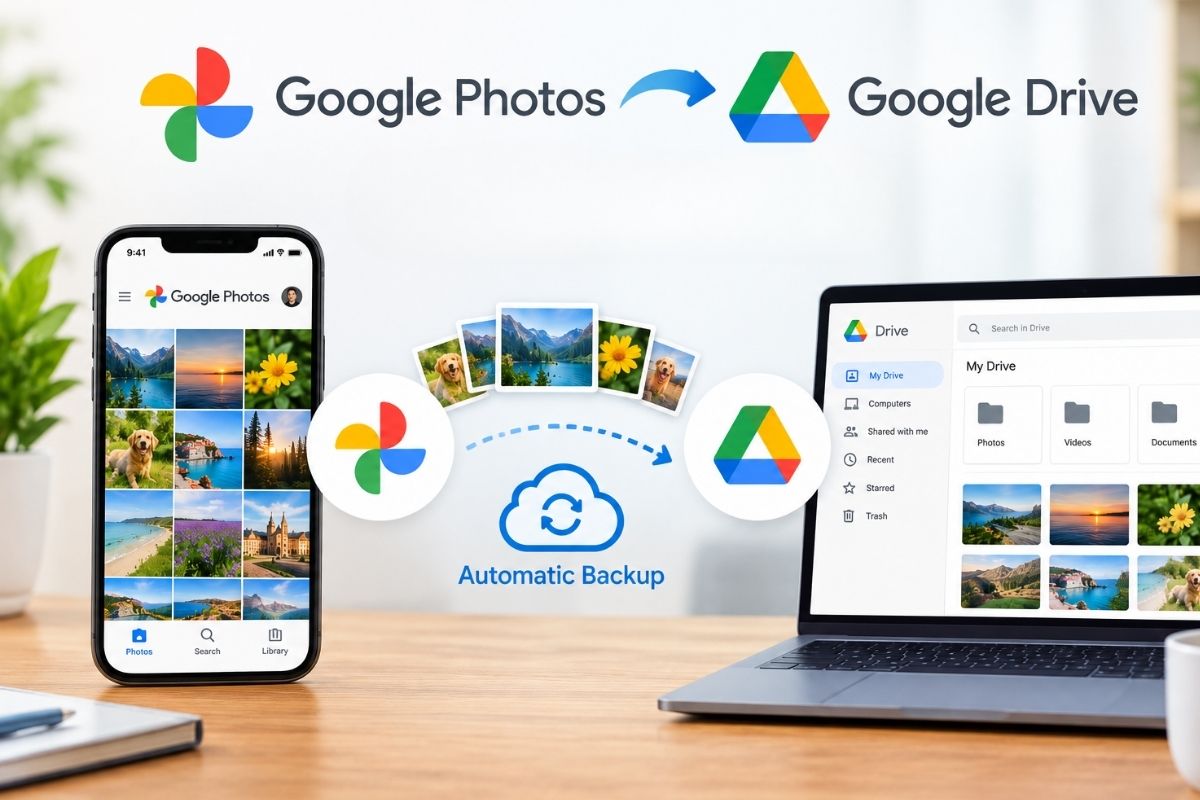
No, not the way it used to work.
Google Photos and Google Drive used to be linked, and your photos appeared in a Google Photos folder inside Drive. Google dropped that integration in 2019. Google’s support pages also confirm that Drive for desktop stopped supporting Google Photos backup on August 10, 2026.
This matters because plenty of older articles still tell you to switch on settings that no longer exist.
It helps to treat the three services as separate things:
- Google Photos: built for backing up, searching, organizing, and sharing photos and videos.
- Google Drive: built mainly for files and folders.
- Google Takeout: built for exporting your Google data.
So if you want a second copy of your Photos library in Drive, you have to export or upload the photos yourself. There’s no old sync toggle to flip.
Also Read: Skyroot Aerospace Becomes India’s First Space Tech Unicorn After Raising $60 Million
Method 1: Use Google Takeout to Backup Google Photos to Google Drive
For a large library, Google Takeout is the most useful official option.
You can export your Google Photos data and pick Google Drive as the place it gets delivered. The finished archive lands in your Drive.
Step 1: Open Google Takeout
Go to Google Takeout and sign in to the account that holds your photos. A list of your Google products will appear.
Step 2: Select Google Photos
Untick everything you don’t need and leave Google Photos ticked. If Google shows extra options for choosing data, look through them so you export what you actually want.
Step 3: Choose Google Drive as the destination
Under delivery method, pick:
Add to Drive
Google builds the archive and puts it in your Drive. You’ll get an email when it’s ready.
Step 4: Wait for the export
A big Google Photos library takes a while to process. Google says an export can take anywhere from a few minutes to several days, depending on how much data you have.
Step 5: Check your Google Drive
When the export finishes, open Drive and find the Takeout archive. You can also download it to your computer if you want a physical copy as well.
Why this method is useful
Takeout works well when you have thousands of photos and videos. You don’t have to pick files one by one. It builds a single archive of your Photos data.
Google also lets you schedule Photos exports. New and updated data gets archived every two months for a year, as long as Google Photos is the only product selected.
Method 2: Download Google Photos and Upload Them to Drive
If you want more say over folders and individual files, download your photos first and then upload them to Google Drive.
It’s slower, but it’s handy when you’d rather organize things yourself.
Step 1: Download photos from Google Photos
Open Google Photos on your computer, select the photos or videos you want to keep, and download them.
With a large library, Takeout is usually more practical than downloading hundreds or thousands of files by hand.
Step 2: Create a folder in Google Drive
Open Drive and make a folder, for example:
Google Photos Backup
Then add subfolders such as:
- 2024
- 2025
- 2026
- Family
- Travel
- Work
- Important Documents
Step 3: Upload the files
Open the folder in Drive and upload your photos and videos. You can also drag files from your computer into the Drive window in your browser.
When should you use this method?
Manual download and upload suits a smaller job, such as moving:
- A single album
- A few hundred photos
- Important family photos
- One particular year
- A handful of videos
You get more control than you would with a full Takeout archive.
Also Read: How To Start Learning Artificial Intelligence From Scratch
Method 3: Transfer Individual Photos From Google Photos to Drive
You don’t always need to back up the whole library.
If you only want a few photos in Drive, download them and upload them to the right Drive folder. On some devices, Drive also shows up as a destination in the share menu.
This works fine for small transfers, but it’s a poor fit for a full library backup. Once you’re dealing with thousands of photos, selecting and moving them over and over gets tedious.
What Happened to Google Photos and Google Drive Sync?
This is where most of the confusion in search results comes from.
Older guides tell you to enable a Google Photos folder inside Google Drive. That advice is out of date.
Google removed the automatic Photos-Drive integration in 2019. Discussions on the Google Photos Community from that time document the change and the download-and-upload workaround people had to use afterward.
For a while, third-party scripts and Google Apps Script projects tried to bring back automatic backups. In 2026, you shouldn’t treat those as the default approach. One long-running script project now points people to Google Takeout instead of its old Google Photos API method.
Does Google Takeout Create a Permanent Backup?
Not quite.
Takeout gives you an export archive. That’s good for saving a snapshot of your data, but it isn’t a continuously synced backup.
Say you make a Takeout archive in October and then take 500 more photos in November. Those new photos won’t be added to the October archive. You’d need to run another export or set up a different backup routine.
Scheduled Photos exports from Google can help keep your archives reasonably current.
Does Backing Up Google Photos to Drive Use Storage?
Yes, and a lot of basic tutorials skip this.
Google Photos, Google Drive and Gmail all share one storage pool. Google says each account gets up to 15 GB of shared storage, unless you’ve bought more through Google One or another offer.
So moving or exporting a big Photos library into Drive doesn’t give you free extra space. If your Photos library takes up 80 GB, a second full copy in the same account’s Drive needs another 80 GB or so.
Check how much storage you have left before you start a large transfer.
Google Photos vs Google Drive: Which Is Better for Photos?
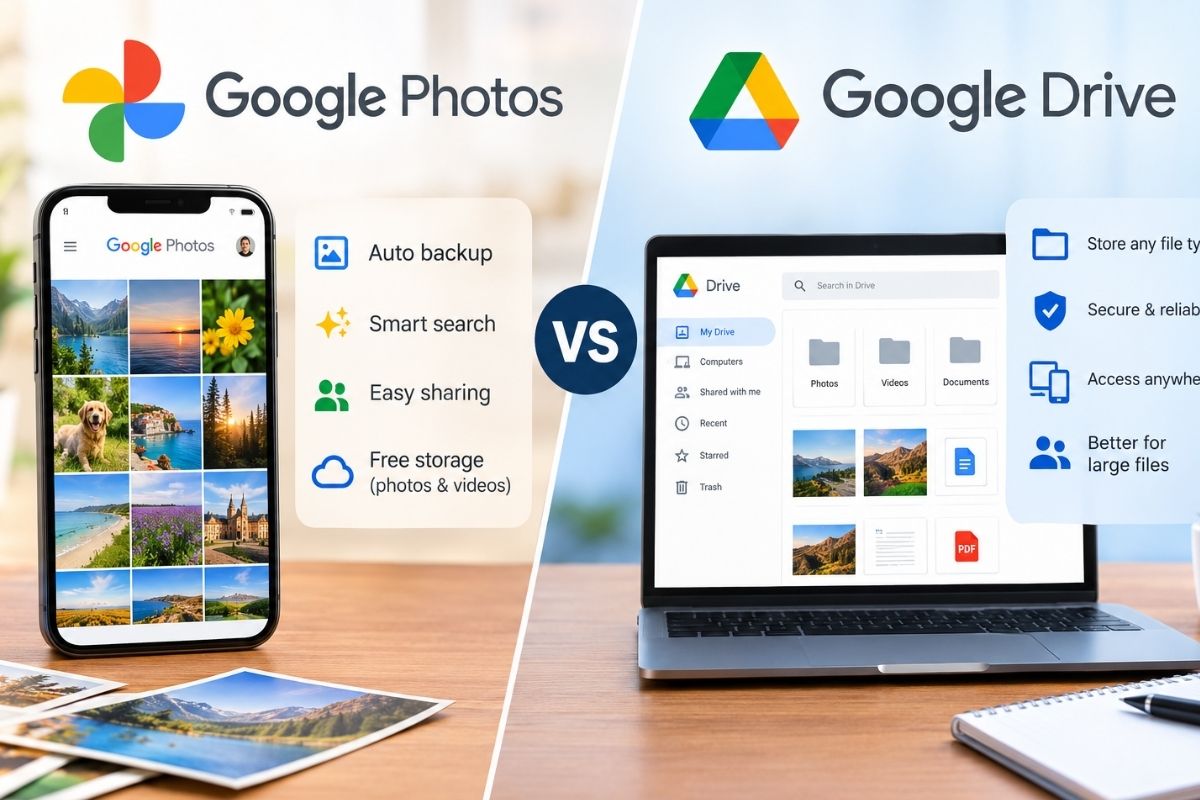
It depends on what you want to do.
| Feature | Google Photos | Google Drive |
|---|---|---|
| Automatic phone photo backup | Yes | Not as a Photos backup |
| Photo search | Excellent | Basic file search |
| Albums | Yes | Folder-based organization |
| File management | Limited compared with Drive | Excellent |
| Sharing | Yes | Yes |
| Best for photo library | Yes | Secondary archive |
| Best for general files | No | Yes |
| Shared Google storage | Yes | Yes |
Google Photos is still the better main home for a personal photo library, since it’s designed around photos and videos. Drive works well as an extra, file-based archive.
Is Google Drive a True Backup of Google Photos?
It can serve as an extra copy, but it has a real limit.
If your Photos library and your Drive copy both live in the same Google Account, they’re still tied to that one account and one storage pool.
For photos that matter, a sturdier setup looks like this:
Google Photos + Google Drive + external storage
For example, you could keep:
- Your everyday library in Google Photos.
- A periodic Google Takeout archive in Drive.
- Another copy on an external hard drive.
That way, a problem with one storage location or one account won’t wipe out everything.
How Much Storage Do You Need?
Check the size of your library before you export it.
How much storage Google Photos uses depends on the quality and date of your backed-up content. Google’s current documentation says photos and videos backed up in Original quality count toward your storage. So do Storage saver and Express quality items backed up after June 1, 2021.
If your account is already close to full, a large Takeout archive added to Drive may need extra space. Your options:
- Free up space
- Delete files you don’t need
- Empty the trash in Drive and Gmail
- Upgrade your Google storage
- Store the exported archive somewhere else
What If Google Photos Backup Is Not Working?
Start by checking your Google Account storage. Google says that if your account is full, you may not be able to back up any more photos or videos.
Then check these:
- Your internet connection
- The backup status in Google Photos
- How much storage is left on your account
- Whether you’re signed in to the right Google Account
- Whether the photos are already backed up
Google Photos supports many common photo formats, including JPG, HEIC, HEIF, PNG, WebP, GIF, AVIF, and a lot of RAW files. Videos can be up to 10 GB for backup.
Also Read: Your Phone Is Listening? How Microphone Permissions Really Work
Best Way to Backup Google Photos to Google Drive in 2026
For most people, this is the best approach.
For your whole library
Use Google Takeout, choose Google Photos, then pick Add to Drive.
It’s the simplest official way to get a big export into Drive.
For selected photos
Download them and upload them to a specific folder in Drive.
For long-term protection
Keep another copy outside your Google Account, such as on an external hard drive.
Just don’t follow an old tutorial that talks about Photos-to-Drive sync. That system is gone, and it isn’t how Google works now.
Frequently Asked Questions
Can I automatically backup Google Photos to Google Drive?
Not with the old automatic sync between the two. Google ended that integration, and Drive for desktop stopped supporting Google Photos backup on August 10, 2026.
How do I transfer all my Google Photos to Google Drive?
The easiest official way is Google Takeout. Choose Google Photos as the data to export and Add to Drive as the delivery method. Google will build an archive and put it in Drive.
Does Google Photos backup use Google Drive storage?
Photos and Drive share the same Google Account storage quota, along with Gmail.
Can I use Google Takeout to back up Google Photos?
Yes. Takeout lets you export your Photos data and either send the archive to Drive or download it to your computer. Google also offers scheduled Photos exports in some setups.
Should I keep photos in both Google Photos and Google Drive?
It can help if you want a separate, file-based copy. Keep in mind that both services use the same storage in your account. For your most important photos, a copy outside your Google Account protects you better.
Final Thoughts
You can still backup Google Photos to Google Drive in 2026, but it won’t be an automatic, ongoing sync.
For a large library, Google Takeout is the most direct official option. For a smaller set of photos, downloading and uploading by hand is usually easier.
Above all, ignore any instructions that tell you to turn on the old Google Photos folder in Drive. Google now treats Photos and Drive as two separate services.
If your photos can’t be replaced, keep more than one copy in different places rather than trusting a single Google Account.
Sources
- Google Photos Help — Back up photos & videos
- Google Account Help — Copy your photos & videos to a service outside Google
- Google Drive Help — Manage storage in Drive, Gmail & Photos





💬 Comments